Uploading your podcast to YouTube.
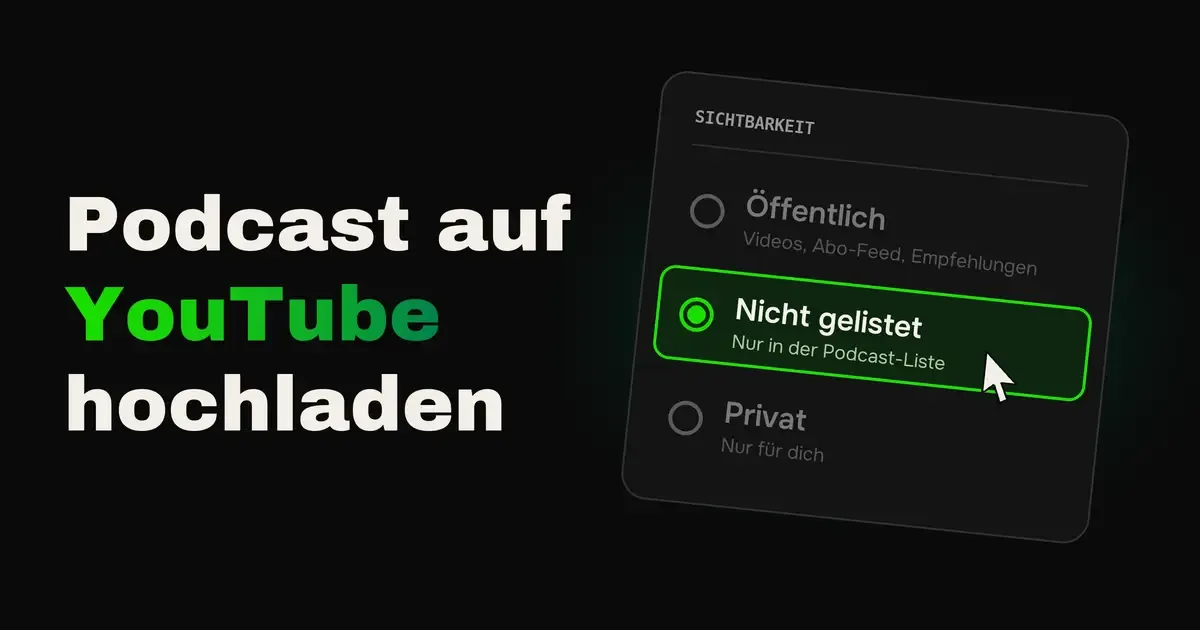
Step by step via RSS feed, as audio or video, and where your episodes then appear.
You have a podcast and want to bring it to YouTube. In YouTube Studio at the latest, it gets confusing. Create a podcast, submit an RSS feed, public or unlisted, and why does every episode suddenly appear twice, once under “Videos” and once under “Podcasts”?
The short answer is this. You bring your audio podcast to YouTube via your RSS feed, then every episode is automatically uploaded as a video with your cover as a still image. If you set these episodes to “Unlisted”, they only appear in the podcast list and no longer among your videos. A video podcast you additionally upload as a real video, yourself or via your host. How that works step by step I show you here.
Why your podcast belongs on YouTube
- YouTube is the biggest podcast platform in the world: Over a billion people use podcasts there every month. In Germany, the Online Audio Monitor 2026 puts YouTube at 44 percent and Spotify at 52 percent for podcasts.
- YouTube actively recommends: Unlike most podcast apps, YouTube shows your episodes to people who do not know you yet.
- YouTube Music comes free: As soon as your podcast is set up on YouTube, it also appears in YouTube Music. The app is preinstalled on many Android phones and has been downloaded over five billion times from the Play Store alone.
Whether audio or video is more worthwhile for you is in the article Audio or video podcast.
How YouTube displays your podcast
Once you understand this, you understand all the settings. If you connect your RSS feed with YouTube, every episode appears in two places on your channel.
- In the “Videos” section, as a perfectly normal video with your cover as a still image, among all the other videos on your channel.
- In the podcast list in the “Podcasts” section. YouTube only shows this section once a podcast is connected to the channel; before that it does not exist at all.
If you also upload other videos to your channel, such as clips or a video podcast, the still-image episodes sit in between and fill your channel and your subscribers’ feed. How to prevent that is in step 6.
Uploading a podcast to YouTube via RSS feed, step by step
You only need the address of your RSS feed, which you find at your host, and access to the email inbox stored in the feed.
Step 1, open YouTube Studio
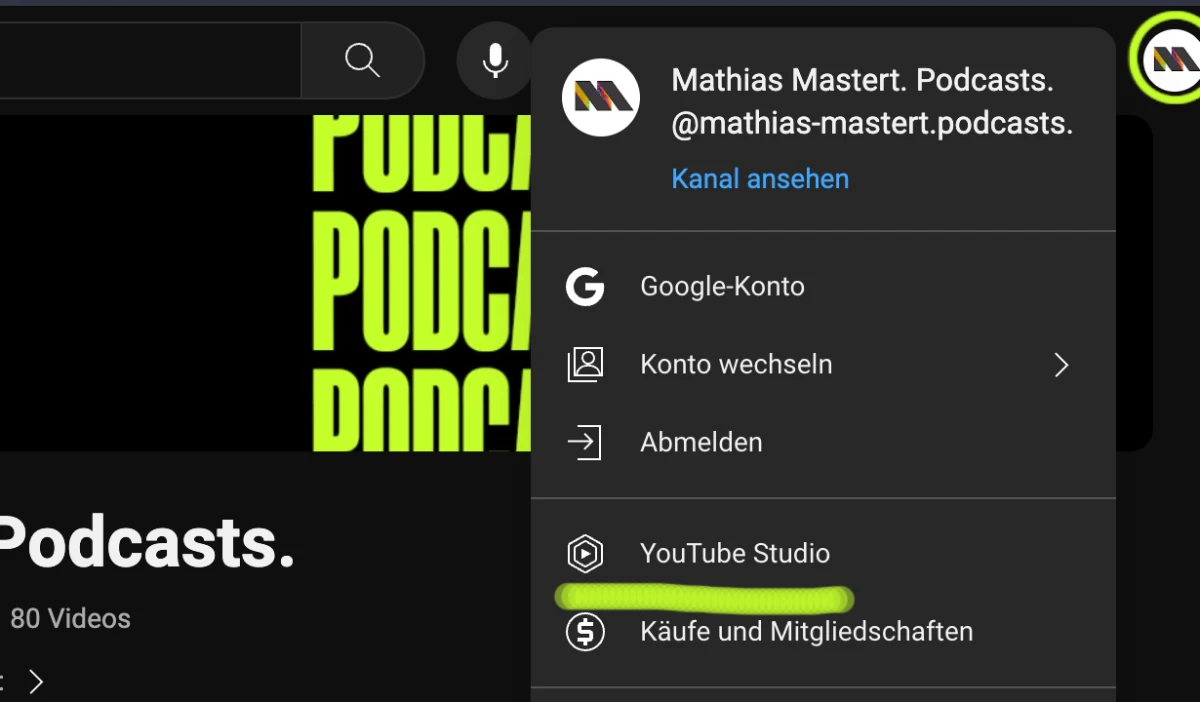
Sign in to YouTube, click your profile picture at the top right and then “YouTube Studio”.
Step 2, create a new podcast
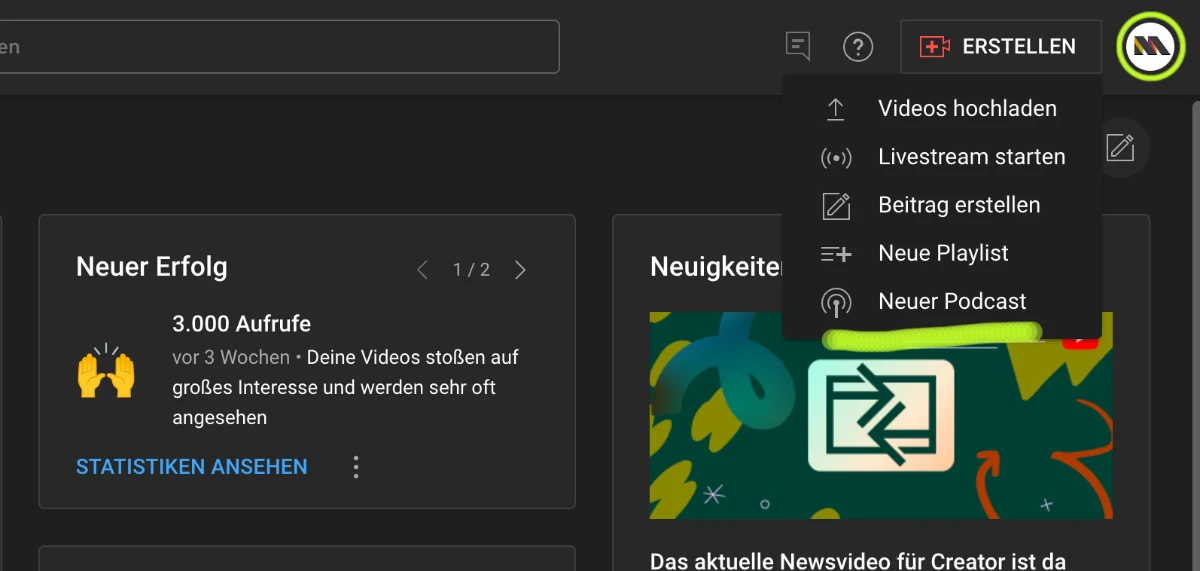
In YouTube Studio, click “Create” at the top right and then “New podcast”.
Step 3, submit the RSS feed
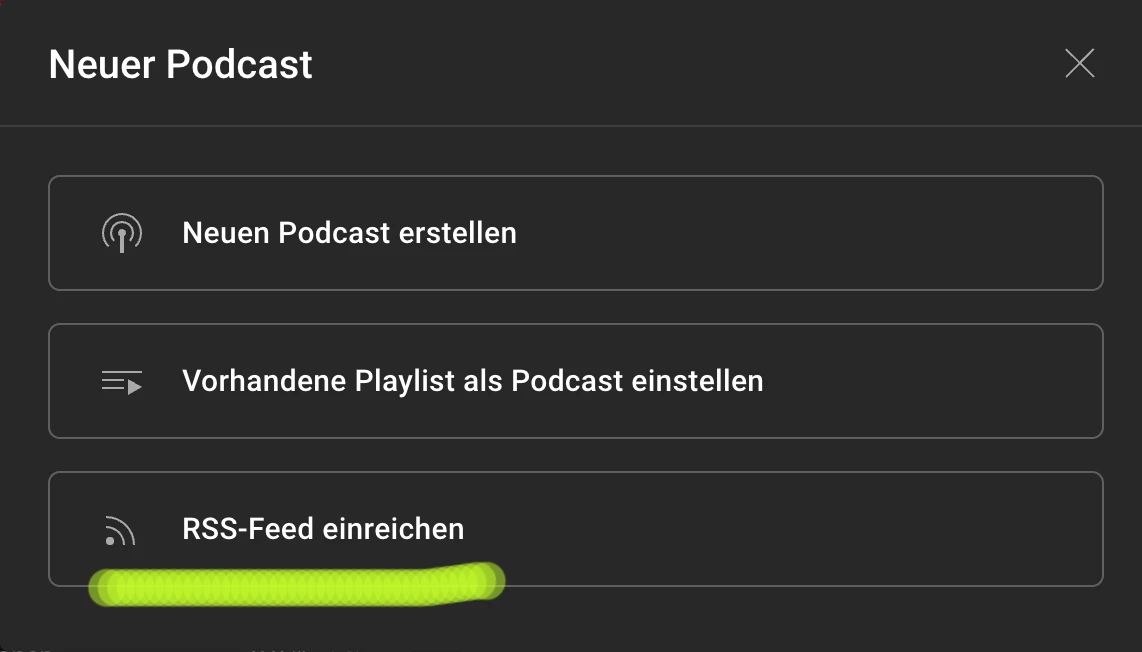
In the next window choose “Submit RSS feed”, confirm the terms of use and paste the address of your feed. YouTube checks the feed and reports if something is missing.
Step 4, verify ownership
YouTube sends a code to the email address in your feed. If nothing arrives, ask your host which address is stored there.
Step 5, select episodes
You decide whether YouTube uploads all episodes from the feed, only those from a certain date or no old ones. Below that you state whether your episodes contain paid promotion such as sponsorships.
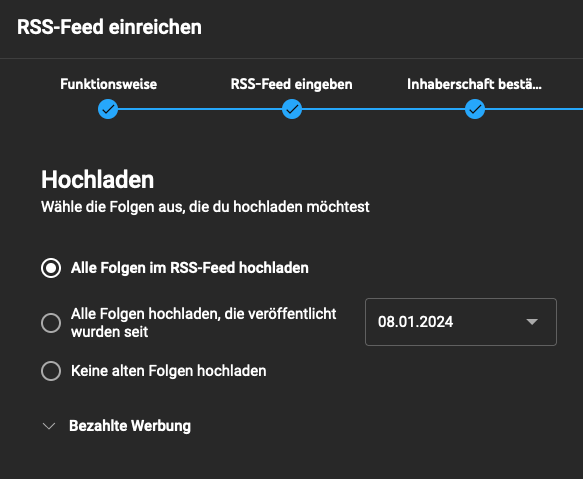
Step 6, set visibility
On the first import, all episodes land on your channel as private. Wait until all are uploaded, then publish the podcast. Now comes the most important step.
- Public: The episodes appear in the podcast list and additionally as still-image videos in the “Videos” section, in the subscription feed and in recommendations.
- Unlisted: The episodes appear only in the podcast list. Your video section stays free for real videos. We tested this at Studio M, and that is exactly how I recommend it as soon as you publish other videos on your channel.
You set visibility in the details of each video. In the podcast details you also define which visibility new episodes get automatically, so you do not have to repeat this for every episode.
Step 7, done
From now on YouTube automatically fetches every new episode from your feed. You no longer have to upload anything.
What you need to know about the RSS feed
- No ads: According to YouTube, episodes from the RSS feed must not contain advertising. Sponsorships and partnerships are allowed but have to be labeled as paid promotion.
- Changes do not arrive automatically: If you later change title, description or audio at your host, YouTube does not pick that up. A new audio file you fetch in YouTube Studio via “Re-upload from RSS feed”.
- Deleting is not enough: If you delete a video on YouTube and the episode is still in the feed, YouTube uploads it again.
- Disconnecting: If you no longer want new episodes from the feed, you disconnect the RSS feed in YouTube Studio under Content, Podcasts, Details.
- Available in Germany, Austria and Switzerland: The RSS feature is only available in certain countries; according to YouTube, the German-speaking countries are among them, as are the US, the UK and many others.
Additionally uploading a video podcast
The RSS feed only brings audio with a still image to YouTube. For reach you need real video, which you upload additionally, either yourself like any other video or automatically via your host. These videos appear normally in the “Videos” section, in the subscription feed and in recommendations. The audio episodes from the RSS feed you set to “Unlisted”, then you have both cleanly separated: the audio in the podcast list and the video among your videos.
Via your host
More and more hosts upload video episodes directly to your YouTube channel, for example Podigee. You upload the video once at the host, from there it goes as audio to all podcast apps and as video to YouTube. According to Podigee, you should know the following.
- It arrives as a normal video: The episode lands on your channel like a self-uploaded video, with title, description, chapters and thumbnail from the host.
- Real videos only: From pure audio episodes, the connection does not generate a video.
- Choose visibility at the host: Public, unlisted or private you set as the default at the host. That only applies to future uploads.
- Follow-up check in YouTube Studio: Check thumbnail, chapters and visibility on the finished video. Videos over 15 minutes only work on verified channels.
- No dynamic ads: Advertising that your host automatically inserts into the audio episodes is not included in the video.
- Deleting works twice: If you delete an episode or video file at the host, the video on YouTube can disappear too.
Other hosts offer similar features; the details differ. Check your host’s help pages beforehand to see whether a video or YouTube export is offered.
RSS feed and video compared
| RSS feed | Video, yourself or via the host | |
|---|---|---|
| Visible on YouTube | Audio with cover as still image | Real video |
| Effort per episode | None, runs automatically | Upload and thumbnail, automatic at the host |
| Where it appears | Podcast list, as public also under Videos | Under Videos, in the subscription feed and in recommendations |
| YouTube Music | Yes, automatically | Only if it is part of a podcast |
| Reach | Low, still images are rarely recommended | High |
| Advertising | Not allowed, label sponsorships | Label sponsorships, dynamic ads are dropped |
YouTube Music and the statistics
As soon as your podcast is set up on YouTube, it can also be found in YouTube Music, on the phone, in the browser and on the TV. Because the app is preinstalled on many Android phones, you reach people there who would never have installed a dedicated podcast app. In the US, YouTube has long been the most important podcast platform; in Europe the use of YouTube Music for podcasts is only just growing.
There is a catch with the statistics. If someone listens to your podcast in YouTube Music directly via the RSS feed, those plays do not land in YouTube Studio. You see them, if at all, only at your host, usually as “YouTube Music” or as an unknown player. For a complete overview you therefore have to combine both statistics. How to read the numbers on YouTube is in the article on podcast reach on YouTube.
Conclusion on your podcast on YouTube
With the RSS feed, your podcast is on YouTube and in YouTube Music within minutes, and new episodes are added automatically. Set the still-image episodes to “Unlisted”, then they sit cleanly in the podcast list and your video section stays free. For real reach you additionally upload video, yourself or via your host, and then check visibility, thumbnail and chapters once.
Frequently asked questions about your podcast on YouTube
Most easily via your RSS feed. In YouTube Studio you click “Create”, then “New podcast” and “Submit RSS feed”. YouTube then automatically uploads every episode as a video with your cover as a still image. A video podcast you additionally upload yourself or have your host upload it.
Set the episodes uploaded via the RSS feed to “Unlisted”. Then they appear only in your channel’s podcast list and no longer among your videos.
Yes, as soon as your podcast is set up on YouTube, for example via the RSS feed, it can also be found in YouTube Music. The app is preinstalled on many Android phones.
Episodes you submit via RSS feed must not contain advertising according to YouTube. Sponsorships and partnerships are allowed but have to be labeled as paid promotion.